Overview
Advanced Channel Packer
Advanced Channel Packer is an Unreal Engine Editor tool that builds a new packed Texture2D by sampling channels from up to three source textures. It is designed for artists and technical artists who want consistent mask packing (for example UE ORM or Unity Metal/Smooth), with optional automatic rewiring of affected base Materials.
KEY FEATURES
- Presets and mappings
- Built in presets: UE Standard (ORM) and Unity Standard (Metal/Smooth)
- Custom channel mapping per output channel (R, G, B, A)
- Channel source options: None (Black), Constant (White), Tex 0 to Tex 2 channels (R, G, B, A)
- Per channel adjustments
- Invert (out = 1 - in)
- Multiplier (0.0 to 4.0)
- Gamma (power curve)
- Optional forced sRGB to Linear conversion when sampling (per channel mapping)
- Texture inputs
- Three input slots with thumbnail preview
- Pick from an asset picker popup
- Drag and drop Texture2D assets from the Content Browser onto a slot
- Output creation
- Creates a new Texture2D asset at a user provided Content Browser path
- Output suffix override (for example _ORM)
- Output settings driven by the selected preset (compression, sRGB flag, mip settings)
- Material automation
- Optional auto rewire of base Materials that reference any of the source textures
- Creates a new TextureSample for the packed texture and reconnects matching material inputs
- Source Control support
- Preflight check: blocks overwrite if the output path is checked out by another user
- Attempts to check out affected Materials before rewiring
- Marks the created packed texture for add
- Commandlet
- Batch pack textures in a folder using suffix based grouping
- Optional dry run
- Optional material rewiring
TECHNICAL DETAILS
- Modules (Editor / Runtime)
- TexturePacker (Editor module)
- No runtime module in the provided source
- Dependencies
- UnrealEd, EditorSubsystem
- ToolMenus, LevelEditor, WorkspaceMenuStructure
- Slate, SlateCore, EditorStyle, PropertyEditor
- AssetRegistry, AssetTools, ContentBrowser
- MaterialEditor
- SourceControl
- ImageCore, ImageWrapper, ImageUtils
- Special systems used
- CPU packing with ParallelFor
- Texture source extraction via UTexture2D::Source.GetMipData (Editor only)
- FImageUtils::ImageResize for bilinear resampling
- Asset Registry referencer queries to discover dependent Materials
.
- Performance considerations
- Packing is CPU based. Large textures can be slow and allocate large temporary buffers.
- Resampling duplicates pixel arrays, increasing peak memory usage.
- Operation is executed on the game thread and will block the editor UI until it completes (packing itself parallelizes per pixel work).
INSTALLATION
- Install the plugin from Fab into your project (recommended) or Engine installation.
- If the plugin includes C++ source, regenerate project files and compile.
- Open Unreal Editor.
- Go to Edit > Plugins.
- Enable the plugin.
- Restart the editor.
HOW TO OPEN THE TOOL
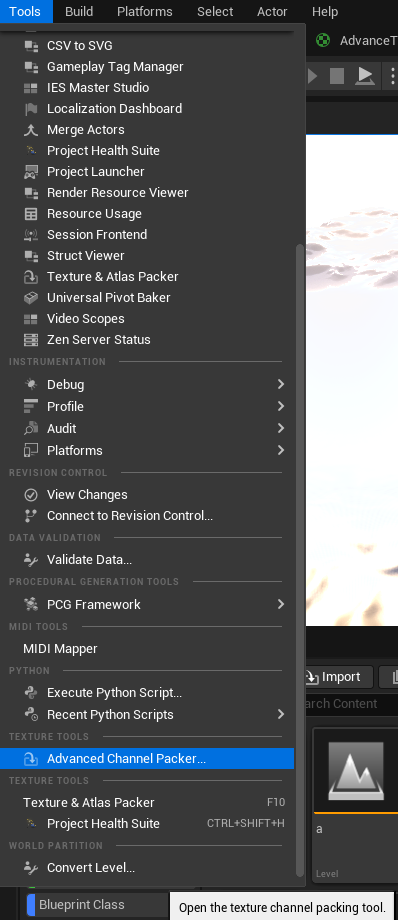
- Main menu path:
- Tools > Texture Tools > Advanced Channel Packer…
- The tool opens as a dockable Nomad tab titled:
- Advanced Channel Packer
WORKFLOW GUIDE
1) Open the window
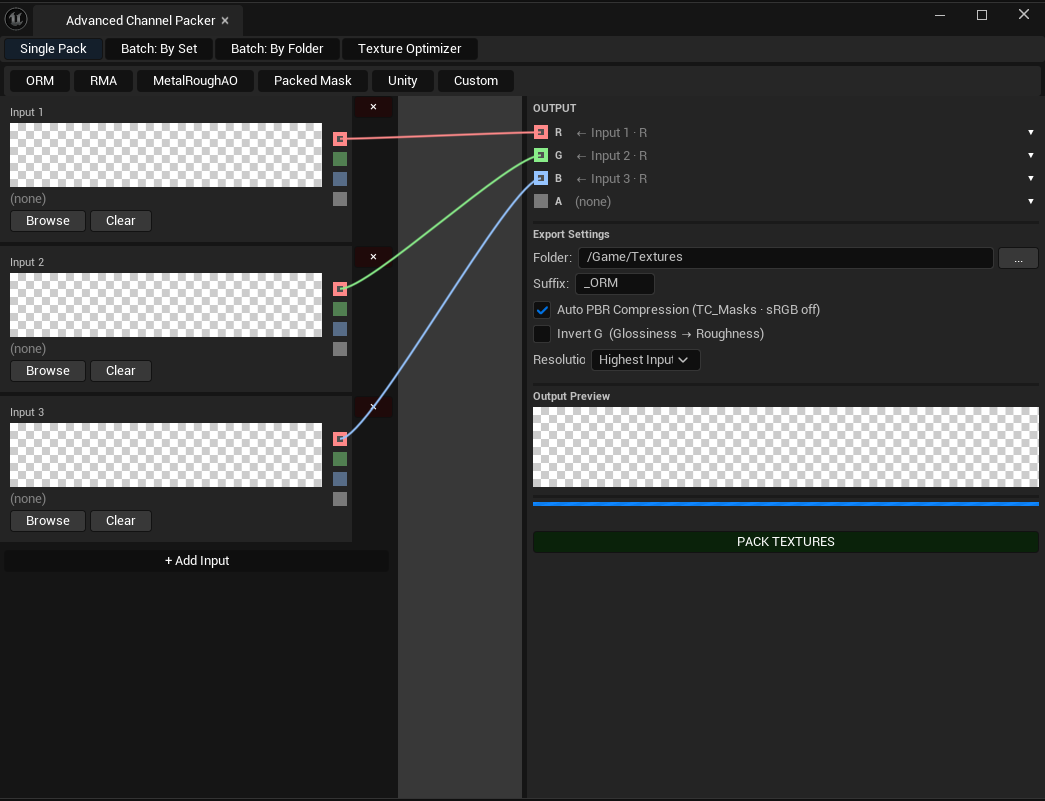
2) Assign input textures (Tex 0 to Tex 2)
- Use Browse on a slot to pick a Texture2D from the popup asset picker.
- Or drag and drop a Texture2D from the Content Browser onto a slot.
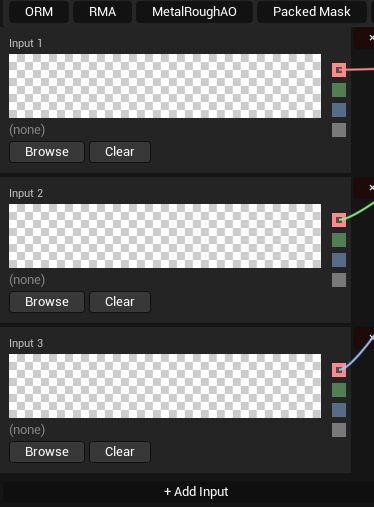
Notes based on implementation: - Missing slots are allowed. If a mapping samples a missing texture slot, that channel evaluates to 0 (black). - The tool reads texture Source data (first mip). Textures without valid Source data cannot be packed.
3) Choose a preset
- Preset dropdown options include:
- UE Standard (ORM)
- Unity Standard (Metal/Smooth)
- Custom

4) Configure output path and suffix
- Output Folder is a text field and must be a valid long package path (for example /Game/Textures).
- Suffix is appended to the base name inferred from the first assigned texture (for example _ORM).
- The … button focuses the Content Browser. It does not pick a folder automatically.
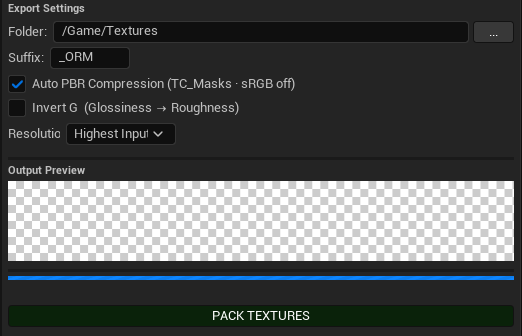
5) Pack
- Click PACK TEXTURES.
- The tool shows a progress dialog (slow task) and reports progress to the window.

6) Batch By Set
Use this tab when your textures follow a naming set, such as one group per material.
Content Dir: Folder to scan for texture sets.
Suffixes: Comma-separated suffixes used to detect matching textures.
Missing: Choose what happens when a set is incomplete: skip it, fill missing channels with black, or fill them with white.
Resolution: Choose whether packed textures use the highest or lowest input resolution.
Detect Sets: Scans the folder and lists detected sets.
Run Batch: Packs all detected sets using the default ORM workflow.
Export Report: Saves a JSON report with packed, skipped, and failed items.
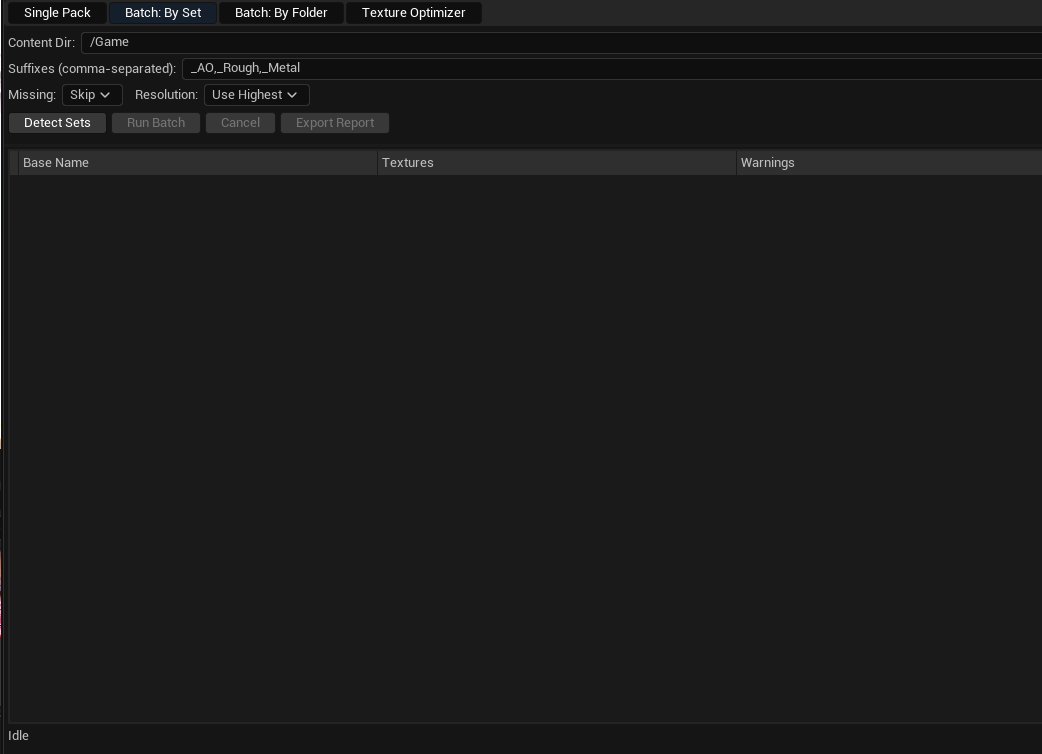
6) Batch By Folder
Use this tab to process every texture found inside a folder.
- Source Dir: Folder containing the source textures.
- Output Dir: Folder where generated textures will be saved.
- Output Suffix: Suffix added to each generated texture name.
- Preset: Shows the active packing preset used for the batch.
- Preview: Lists the textures that will be processed and their output paths.
- Run: Starts the batch process.
- Cancel: Stops the current batch operation.
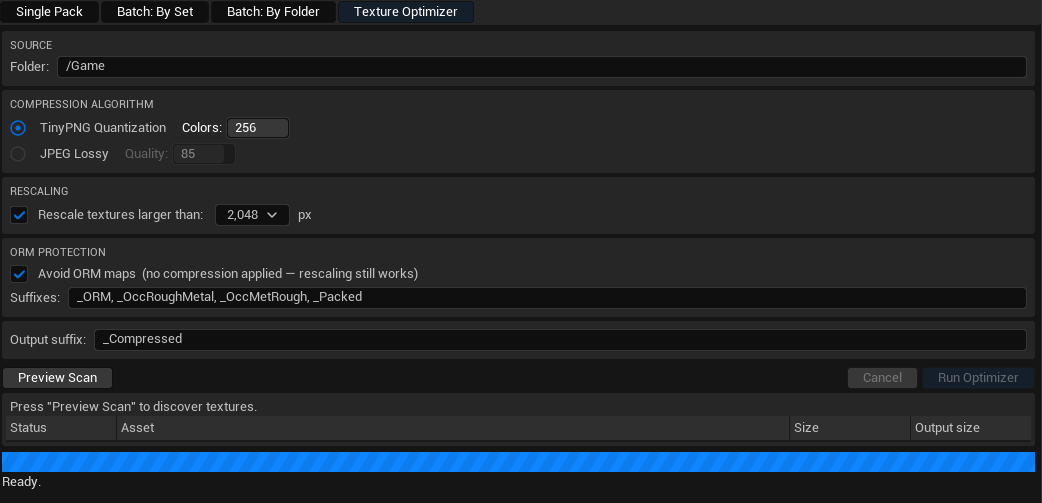
7) Texture Optimizer
Use this tab to reduce texture size and optionally rescale large textures.
- Folder: Source folder to scan.
- Compression Algorithm: Choose between TinyPNG-style quantization or JPEG lossy compression.
- Colors / Quality: Adjust the selected compression method.
- Rescaling: Enable this to downscale textures larger than the selected maximum size.
- ORM Protection: Avoid lossy compression on ORM-style packed maps based on suffixes.
- Output Suffix: Suffix used for optimized output assets.
- Preview Scan: Scans and classifies textures before making changes.
- Run Optimizer: Processes the scanned textures.
- Status List: Shows whether each texture will be compressed, rescaled, skipped, or flagged as a potential ORM map.