Overview
Pivot Studio is a Unity Editor extension for changing the pivot of static mesh objects. It works with GameObjects that have a MeshFilter and a non-null sharedMesh.
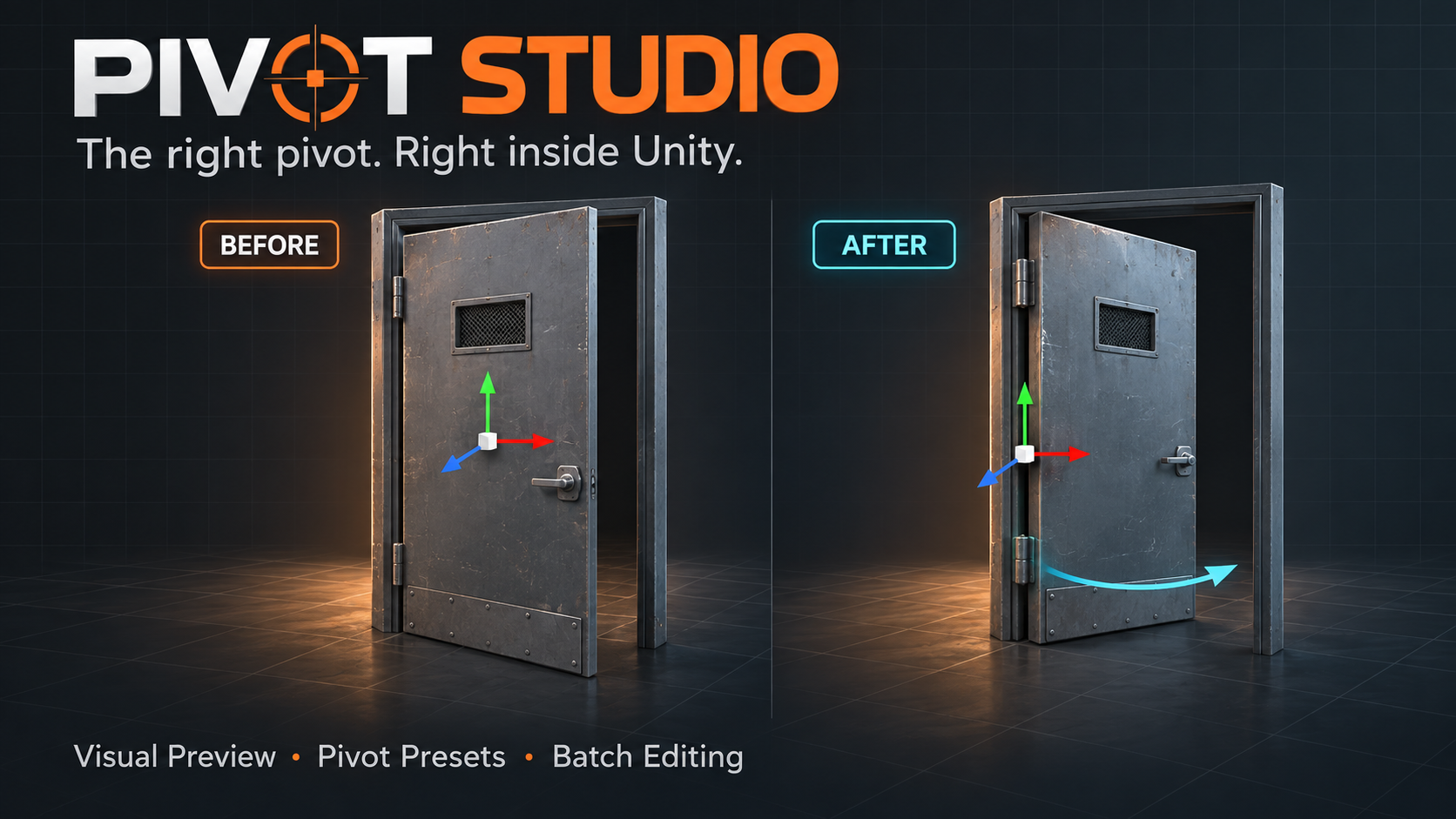
The recommended workflow duplicates the source mesh, offsets its vertices in local space, assigns the copy and compensates the Transform. The rendered object stays in the same world-space position while its origin moves to the requested point.
All operational code is compiled into the Editor-only PivotStudio.Editor assembly. Version 1.0.0 contains no runtime scripts or components.
Installation
Requirements
- Unity 2022.3 LTS or newer.
- A static mesh object with a MeshFilter.
- A readable mesh for Bake modes. Wrapper Pivot does not require mesh readability.
Unity Package Manager
- Copy com.ignacio.pivotstudio into the project's Packages folder as an embedded package; or
- Open Package Manager, choose Add package from disk... and select package.json; or
- Choose Add package from git URL... and enter the package repository URL.
Assets-folder installation
If you received an Assets-ready distribution, copy its PivotStudio folder into Assets. Do not keep the Assets and UPM copies installed together: both contain the same Editor implementation and will create duplicate definitions.
Verify the installation
Open Tools > TA Tools > Pivot Studio. The Package Info section should report version 1.0.0 and Unity 2022.3 LTS or newer.
Quick Start
- Select a GameObject with a valid MeshFilter.
- Open Tools > TA Tools > Pivot Studio.
- Choose Bake Pivot Into Mesh.
- Choose a preset such as Bottom Center.
- Keep Safe Mesh Copy, Save Generated Meshes and Recalculate Bounds enabled.
- Enable Preview In Scene View and inspect the orange target pivot.
- Click Apply To Selection.
The generated mesh is saved to Assets/PivotStudio/GeneratedMeshes by default. The visible geometry should not move, and the Transform gizmo should appear at the chosen point.
Recommended post-checks
- Rotate the object around its new pivot.
- Inspect the MeshFilter's new mesh reference.
- Review prefab overrides when processing an instance.
- Validate collision and any custom component that references the source mesh.
- Save the scene and generated assets after reviewing the result.
Window Layout
Selection
The top panel reports Selected objects, valid MeshFilters, invalid objects and directly attached Skinned Mesh Renderers. It warns about shared meshes, prefab instances, imported model meshes and unreadable meshes.
A valid target must have a MeshFilter and a non-null sharedMesh on the selected GameObject itself. Child components are not discovered automatically.
Mode
Current Tool Mode selects the operation. Batch Mode switches from the active GameObject to every valid selected object. Batch Bake forces Batch Mode on.
Preset
The preset grid provides 18 target positions. The three vector fields remain visible, but only the field that matches the active custom preset is used.
- Reset Scene Handle To Current Pivot moves the handle to the active object's Transform position.
- Reset Custom Position clears the local and world custom vectors. It does not reset the Scene Handle vector.
Safety
Controls mesh duplication, destructive editing, normal and bounds recalculation, asset persistence, destination folder and filename suffix.
Apply and Package Info
Objects To Process shows the exact target count. The result message lists successes and per-object failures. Package Info can ping the installed package folder.
Operation Modes
| Mode | Mesh data | Hierarchy | Visible result |
|---|---|---|---|
| Bake Pivot Into Mesh | Offsets vertices in a copy or the original | Unchanged | Stays in place |
| Wrapper Pivot | Unchanged | Adds a parent | Stays in place |
| Move Transform Only | Unchanged | Unchanged | Object moves |
| Batch Bake | Bakes every valid selected mesh | Unchanged | Each object stays in place |
Bake Pivot Into Mesh
Subtracts the target local position from every vertex and moves the Transform by the equivalent transformed vector. Rotation and scale remain unchanged.
Wrapper Pivot
Creates an empty parent named ObjectName_Pivot at the target position, inserts it at the original sibling index and reparents the selected object while preserving its world transform. Use it for unreadable meshes, imported assets or workflows where mesh data must remain untouched.
Move Transform Only
Sets transform.position to the target. This changes layout: the visible mesh moves with the Transform. It is not a pivot bake.
Batch Bake
Runs the Bake workflow on every valid selected object. Bounds-based presets are evaluated independently, and Safe Mesh Copy creates a separate copy for each target.
Pivot Presets
Bounds presets use mesh.bounds in mesh-local space. Right is +X, Left is -X, Top is +Y, Bottom is -Y, Front is +Z and Back is -Z.
| Group | Presets |
|---|---|
| Center | Center |
| Face centers | Bottom Center, Top Center, Front Center, Back Center, Left Center, Right Center |
| Bottom corners | Bottom Front Left, Bottom Front Right, Bottom Back Left, Bottom Back Right |
| Top corners | Top Front Left, Top Front Right, Top Back Left, Top Back Right |
| Custom | Custom Local Position, Custom World Position, Scene Handle Position |
Custom Local Position
Uses the exact vector as a point in each mesh's local space. In a batch, every object receives the same numeric local vector.
Custom World Position
Uses one shared world-space point. Pivot Studio converts it to local space independently for each object.
Scene Handle Position
Uses a world-space point edited with a Scene View position handle. Reset the handle before first use because its initial value is world origin.
Scene View Preview
Enable Preview In Scene View to display the operation targets:
- blue wireframe: current mesh bounds;
- gray sphere: current Transform pivot;
- orange sphere: target pivot;
- dotted line: distance between current and target pivots;
- red, green and blue lines: target local X, Y and Z axes.
The interactive handle appears only for Scene Handle Position. It follows Unity's Local/Global pivot-rotation setting. In batch mode, a single world-space handle position is applied to every target.
Without Batch Mode, preview and Apply operate only on Selection.activeGameObject. With Batch Mode, they operate on all valid selected GameObjects.
Safety & Generated Mesh Assets
Safe Mesh Copy
Enabled by default. Pivot Studio instantiates the source mesh, applies the vertex offset and assigns the copy. Every processed object receives a separate copy, even when the selection originally shared one mesh.
Generated mesh files
With Save Generated Meshes enabled, each copy is saved as a uniquely named .asset. The default name is the original mesh name plus _PivotEdited.
The destination must be Assets or a path beginning with Assets/. Missing subfolders are created automatically. Existing files are never overwritten; Unity generates a unique path.
Unsaved copies
Disabling Save Generated Meshes assigns a temporary Editor mesh. This is useful for a short test but is not reliable across project or scene reloads.
Destructive Edit
When Safe Mesh Copy is off, Bake is blocked until Destructive Edit is explicitly enabled. A confirmation dialog appears before the operation.
- Imported model meshes controlled by ModelImporter are blocked from destructive editing.
- Shared meshes are not blocked. The UI warns, but every reference to that mesh can change.
- Do not use destructive batch processing when selected objects share a mesh. The same mesh can be offset repeatedly.
Normals and bounds
A translation does not invalidate normals, so Recalculate Normals is off by default. Enabling it may replace authored/imported normals and change shading. Recalculate Bounds is on by default and should normally remain enabled to avoid incorrect culling or bounds display.
Batch Processing
Enable Batch Mode or select Batch Bake to process every valid selected GameObject. Invalid objects are skipped. One failure does not stop later objects; the final message reports the success count and each named error.
| Preset type | Batch behavior |
|---|---|
| Center, faces and corners | Evaluated from each object's own mesh bounds |
| Custom Local Position | The same local vector is used on every object |
| Custom World Position | Every object targets the same world point |
| Scene Handle Position | Every object targets the same handle world point |
The Batch Mode toggle also works with Wrapper Pivot and Move Transform Only. It is not restricted to Bake.
Safe batch checklist
- Keep Safe Mesh Copy and Save Generated Meshes enabled.
- Confirm the Objects To Process count.
- Test two or three representative objects first.
- Inspect prefabs, colliders and generated assets.
- Save only after verifying the result.
Prefabs & Undo
Prefab instances
Safe-copy assignment and Transform movement are recorded as prefab instance overrides. A compatible same-object MeshCollider assignment is also recorded. Review overrides before applying them back to a prefab asset.
Wrapper Pivot creates a normal GameObject and changes the selected object's parent. Prefab roots can generally be wrapped while preserving the prefab connection, but nested prefab structures may reject reparenting. Validate animation paths, constraints and hierarchy-dependent scripts.
Undo coverage
Each Apply action is grouped as Pivot Studio Operation. Depending on the mode, Unity records created meshes, mesh state, MeshFilter assignments, compatible collider assignments, Transform changes and wrapper objects.
AssetDatabase file creation is not uniformly covered by Undo across Unity versions. Undo may restore the scene while leaving an unused generated .asset. Confirm that it has no references before deleting it manually.
MeshCollider Behavior
A MeshCollider is updated automatically only when it is on the same GameObject and its sharedMesh is exactly the original MeshFilter mesh. It is reassigned to the baked copy and included in Undo and prefab override recording.
Pivot Studio does not remap colliders on other GameObjects, colliders that already reference a different mesh, or custom component fields that store the source mesh. Review those references manually after baking.
Demo & Validation
Package Manager exposes two samples: Pivot Studio Demo and Demo Meshes. After importing the demo, run Tools > TA Tools > Pivot Studio > Create Demo Scene.
The generator asks about unsaved scene changes, then creates:
- simple, rotated and non-uniformly scaled cubes;
- two instances of a generated cube prefab;
- an imported-mesh placeholder to replace with your own FBX;
- an invalid-selection example without a MeshFilter.
Assets are written under Assets/PivotStudioDemo. Running the generator again can replace the demo scene and prefab inside that folder.
Recommended validation matrix
- Cube at (5, 0, 2) with 45° Y rotation.
- Object under non-uniform and negative parent scale.
- Two objects sharing one source mesh in Safe Batch mode.
- FBX prefab instance with Wrapper Pivot.
- Readable FBX with Safe Mesh Copy.
- UVs, normals, tangents, materials, submeshes and a same-object MeshCollider after Bake.
Troubleshooting
Apply To Selection is disabled
Select an active GameObject with a valid MeshFilter and mesh. In Bake modes, enable Safe Mesh Copy or explicitly enable Destructive Edit. If multiple objects are selected but Batch Mode is off, only the active object is considered.
The mesh is not readable
Enable Read/Write in the source model's Import Settings and reimport, or use Wrapper Pivot. Safe Mesh Copy still needs to read the source vertices.
The target is unexpectedly at world origin
Scene Handle Position starts at (0, 0, 0). Click Reset Scene Handle To Current Pivot before positioning it.
Front and Back look reversed
Front is local +Z and Back is local -Z. Imported content may use another visual convention. Use a custom position or the Scene handle.
Another object changed
A destructive edit probably modified a shared mesh. Undo immediately when possible and repeat with Safe Mesh Copy.
The collider no longer matches
Only a compatible MeshCollider on the same GameObject is remapped. Locate and update external collider references manually.
Undo left a mesh file behind
Verify that the generated asset is unused, then remove it manually. This is an AssetDatabase Undo limitation.
Known Limitations
- SkinnedMeshRenderer, skinning, bind poses and animation baking are not supported.
- Bake requires a readable mesh.
- Wrapper Pivot changes hierarchy and may affect animation paths, constraints or parent-dependent scripts.
- External MeshCollider and custom mesh references are not remapped.
- Persistent asset creation may leave files behind after Undo.
- Destructive shared-mesh batch editing is not deduplicated or blocked.
- Move Transform Only changes object placement and has no ghosted future-position preview.
Technical Reference
Bake equation
For local target offset p, each local vertex becomes v' = v - p. The Transform position becomes position' = position + TransformVector(p). This preserves every vertex's world-space position while moving the origin.
What Bake changes
| Data | Behavior |
|---|---|
| Vertex positions | Translated by the local pivot offset |
| Normals | Preserved unless Recalculate Normals is enabled |
| Bounds | Recalculated by default |
| Indices, submeshes and UVs | Unchanged |
| Tangents, colors and materials | Unchanged |
| Transform rotation and scale | Unchanged |
Editor code
- PivotStudioWindow: UI, selection and operation orchestration.
- PivotStudioUtility: selection analysis, preset conversion and wrapper/Transform operations.
- PivotMeshUtility: mesh baking, generated asset paths and safety validation.
- PivotStudioSceneGUI: Scene View bounds, pivots, axes and position handle.
- PivotOperationSettings: serializable window settings and defaults.
The public classes are available to Editor assemblies, but version 1.0.0 does not declare a separately versioned automation API. Treat direct code integrations as subject to change.