Overview
Lighting Suite
A comprehensive lighting analysis and management tool.
Analyze which lights affect any surface, find shadow sources, create lights interactively, and organize lights into groups.
Opening the Plugin
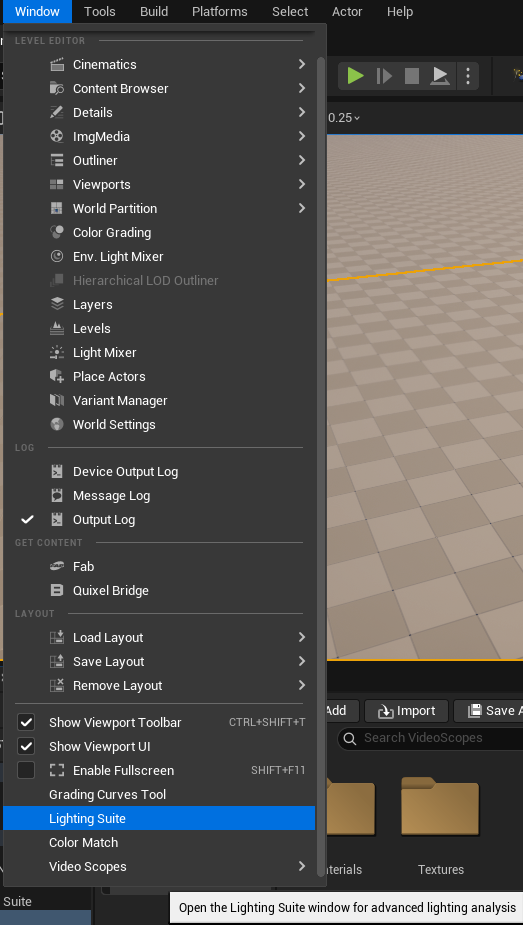
In the Unreal Editor top menu bar
Window > Lighting Suite.
The Lighting Suite panel opens as a dockable window with three tabs: Analysis, Scene Lights, and Cameras.
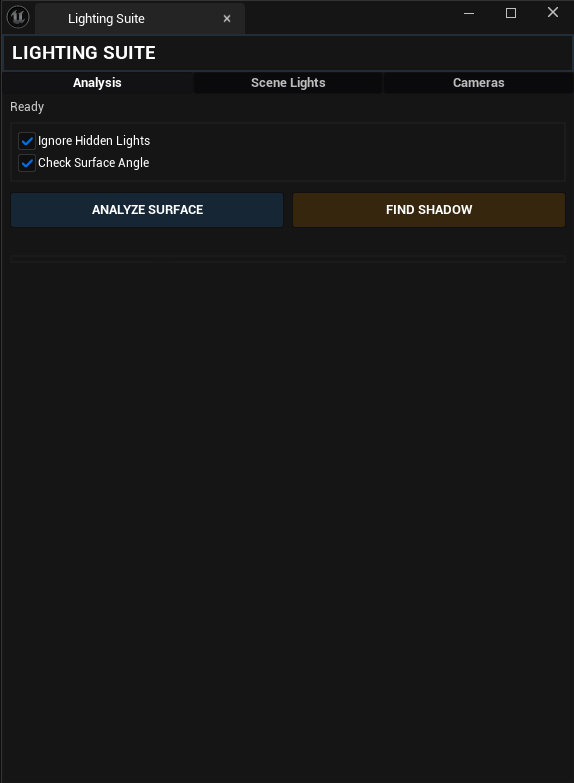
Analysis Tab
Surface Analysis
Inspect which lights affect any surface in your scene.
1. Configure Options
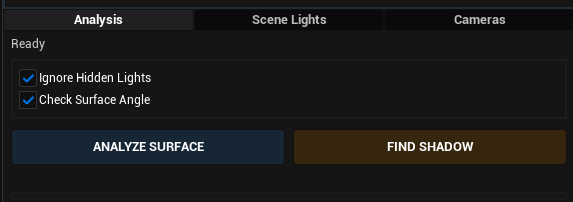
At the top of the Analysis tab, two checkboxes control the analysis behavior:
| Option | Default | Description |
|---|---|---|
| Ignore Hidden Lights | On | Excludes invisible lights from results |
| Check Surface Angle | On | Only counts lights that face the surface (based on surface normal) |
2. Analyze a Surface
Click the blue "ANALYZE SURFACE" button and the status will change to "Picking...".
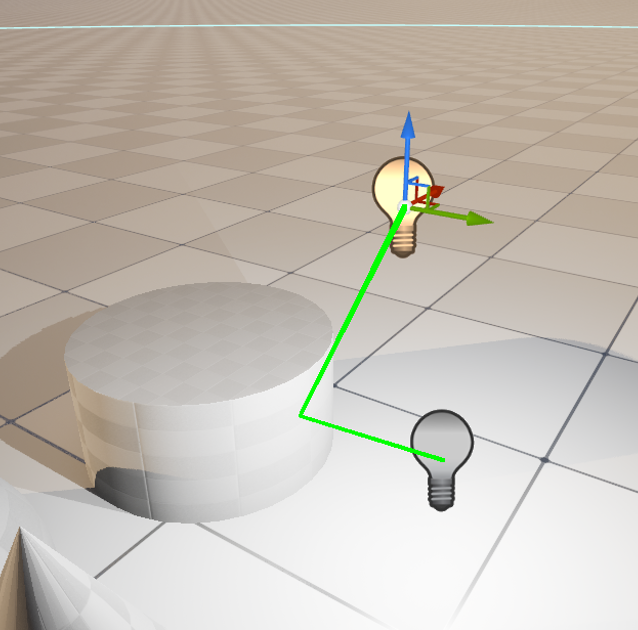
Click on any surface in the viewport and the plugin will trace all lights in the scene and show which ones affect that point. The light also will be listed.
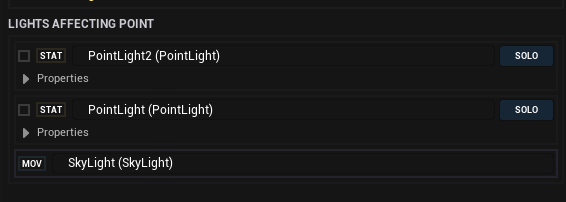
3. Read the Results
After clicking, the results panel shows:
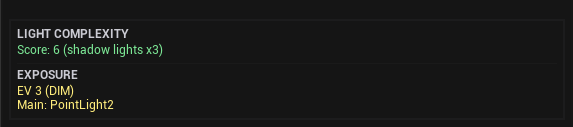
Light Complexity Score
A color-coded performance indicator:
- Green (0–8): Good; Yellow (9–16): Acceptable; Red (17+): Too complex – consider reducing lights
Exposure Analysis
Reports the estimated EV (Exposure Value) at that point and identifies the main light source.
Stationary Light Overlap Warning
A red warning appears if more than 4 stationary shadow-casting lights overlap (Unreal's hardware limit).
4. Browse Affecting Lights
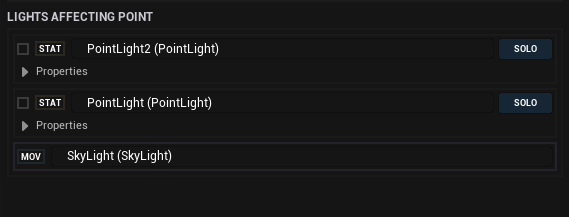
Below the summary, a scrollable list shows every light affecting the clicked point, sorted by contribution (strongest first).
Each entry shows:
- Mobility badge – STAT (Stationary), MOV (Movable), or STC (Static)
- Light name and type – Click the name to select the light in the editor
- SOLO button – Isolate this single light to see its contribution alone
5. Edit
Light Properties In-Place
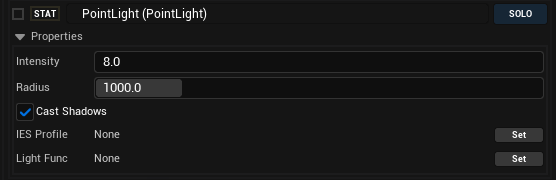
Click the expand arrow on any light entry to reveal editable properties without leaving the panel:
| Property | Available For | Range |
|---|---|---|
| Intensity | All lights | 0 – 100,000 |
| Temperature | Lights with temperature enabled | 1,500 – 15,000 K |
| Attenuation Radius | Point, Spot, Rect lights | 0 – 100,000 |
| Outer Cone Angle | Spotlights only | 1 – 90 degrees |
| Cast Shadows | All lights | On/Off |
Changes apply in real-time to the viewport.
Shadow Finder
Identify what is blocking light and causing shadows.
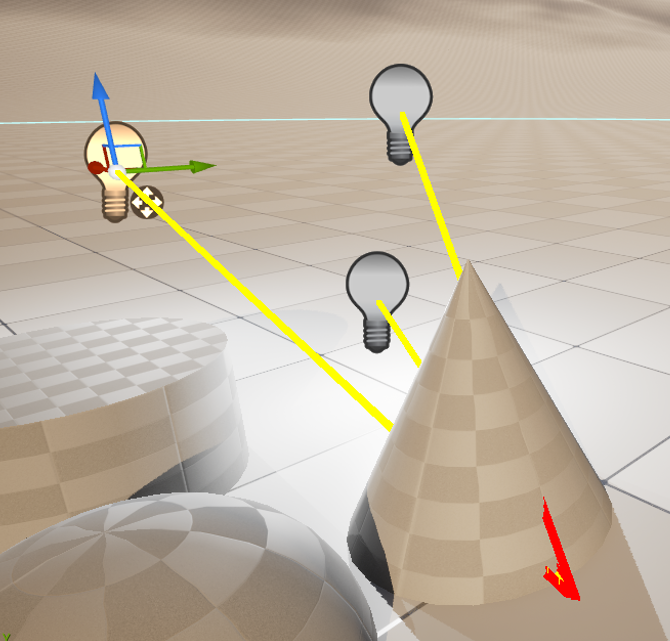
Click the orange "FIND SHADOW" button.
Click on a shadowed area in the viewport.

The plugin will:
Trace rays from all shadow-casting lights to the clicked point
Identify which lights are blocked and by what geometry
Draw yellow debug lines from the point to light sources
Draw red debug lines from the point to blocking geometry
Display results like: 'SunLight' blocked by 'Building_Wall_03'
Solo Mode
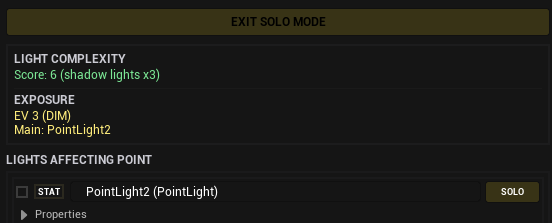
Click SOLO on any light to isolate it. All other lights temporarily become invisible.
A yellow "EXIT SOLO MODE" button appears at the top. Click it to restore all lights.
Scene Lights Tab
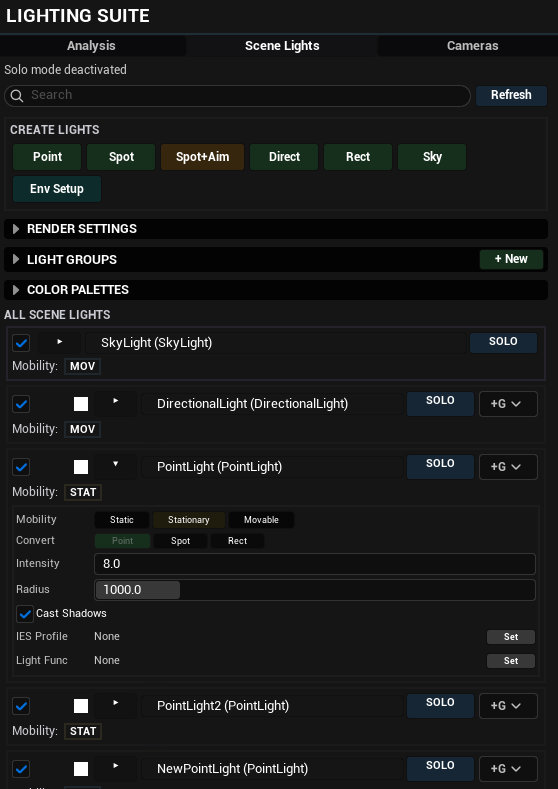
Manage every light in your scene from a single panel.
Light List
A scrollable list of all lights in the scene.
Each entry provides:
- Visibility toggle – Show or hide the light
- Color picker – Click to change the light's color
- Light name and type – Click to select in editor
- Mobility badge – Blue = Movable, Brown = Stationary, Gray = Static
- SOLO button – Isolate this light
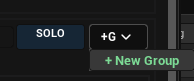
- Add to Group dropdown – Assign to a light group
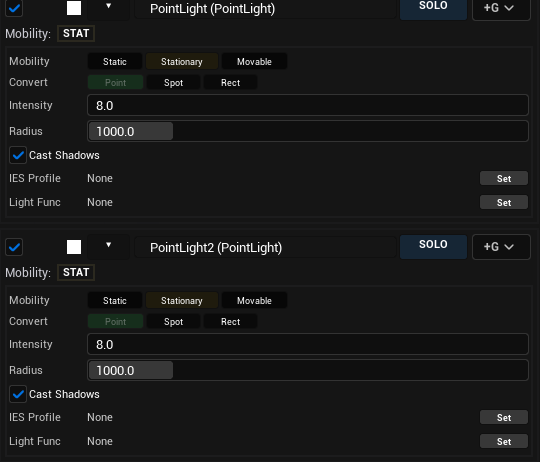
Use the Search box at the top to filter lights by name. Click Refresh to rescan the scene.

Creating Lights
Six buttons let you create lights by clicking directly in the viewport:
| Button | Creates |
|---|---|
| Point | Point light 100 units above the clicked surface |
| Spot | Spotlight pointing at the clicked surface |
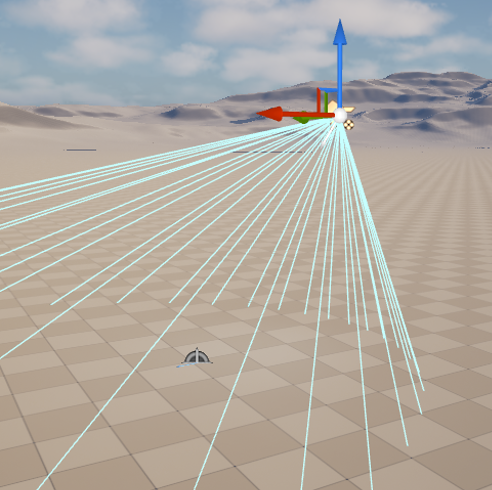
| Spot+Aim | Spotlight with an aim target — the spotlight continuously faces the target point, even if you move the target afterwards |
| Direct | Directional light |
| Rect | Rectangular area light |
| Sky | Sky light |
All created lights default to Movable mobility and are automatically selected in the editor.

Screenshot: Creating a Spot+Aim light showing spotlight and target point
Light Groups
Organize lights into custom groups for batch visibility control.
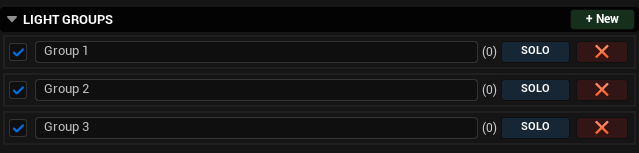
Creating a Group
Expand the Light Groups section.
Click "+ New".
Type a name for the group.
Screenshot: Light Groups section with new group)

Adding Lights to Groups
Use the "Add to Group" dropdown on any light entry.
Using Groups
Each group shows:
Visibility checkbox
Light count
SOLO button
Delete (X) button
Light groups are saved automatically to: Saved/LightingSuite/LightGroups.json and persist across editor sessions.
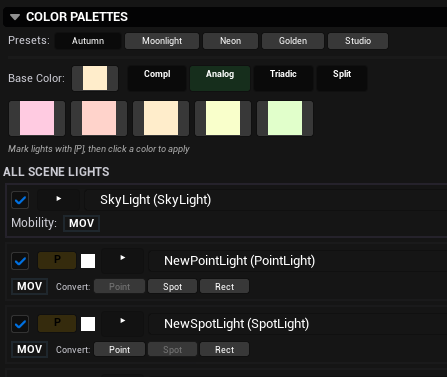
Color Palettes
Apply curated color schemes to multiple lights at once.
Workflow
Expand the Color Palettes section in the Scene Lights tab.
Click the palette name button to cycle through 5 built-in palettes:AutumnForest, CoolMoonlight, NeonCity, GoldenHour, and StudioPortrait.
Use the selection checkboxes next to each light in the scene list to mark which lights should receive colors.
Click "Apply to Selected".
Colors are distributed intelligently by light type:
- Directional lights get the primary color
- Point lights get the fill color
Spotlights get the accent color
- Other light types alternate between the remaining colors
Only colors change.Intensity, position, and all other properties are preserved.
Per-Light: Conversion, IES Profile & Light Function
Each light in the scene list has additional controls available in its expanded properties.
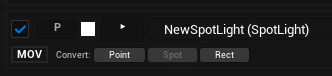
1. Light Type Conversion
Light Type Conversion. A "Conv" dropdown lets you convert any light to a different type: Point, Spot, Directional, or Rect.
The conversion preserves:
Transform
Intensity
Color
Temperature
Mobility
Shadows
Attenuation radius
Cone angles, where applicable
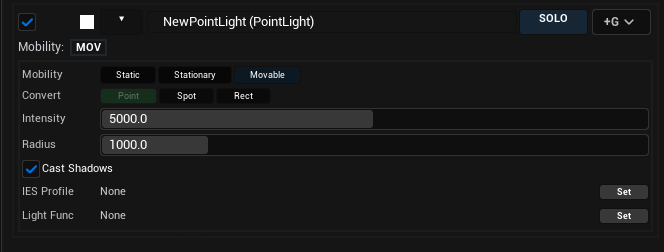
2. IES Profile
IES Profile. For Point, Spot, and Rect lights, the expanded properties show an IES Profile row.
Click "Set" to open an asset picker filtered to IES textures (UTextureLightProfile)
Click "X" to clear the assigned profile
3.Light Function Material
Light Function Material. All lights can have a Light Function material assigned.
Click "Set" to browse for a MaterialInterface asset
Click "X" to clear it
Useful for flickering, cloud shadows, or custom light patterns.
Cameras Tab
Manage scene cameras and save or load camera presets.
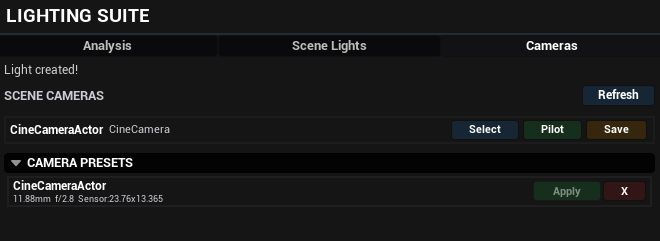
Camera List
Displays all CameraActor and CineCameraActor instances in the scene.
Each entry shows:
Camera name and type ("Camera" or "CineCamera")
"Select" button Select the camera actor in the viewport
"Pilot" / "Stop" toggle Lock the editor viewport to this camera's perspective
"Save" button (CineCamera only) Save current settings as a preset
Camera Presets
Expand the Camera Presets section to save and restore CineCamera configurations.
Presets store:
Focal length
Aperture/Focus distance
Sensor dimensions
Aspect ratio
Workflow
Pilot a CineCamera and adjust its settings.
Click "Save" to create a named preset.
Later, pilot any CineCamera and click "Apply" on a preset to load it.
Presets persist across sessions via: Saved/LightingSuite/CameraPresets.json
Tips
Use Analyze Surface + Solo to understand individual light contribution
Shadow Finder helps identify unexpected shadow casters
Use Light Groups for lighting scenarios like Day or Night
Spot+Aim is ideal for key lights
Avoid exceeding the Stationary Light Overlap limit