User Manual for Unreal Engine 5.7
Plugin: Bulk Extended
Engine: Unreal Engine 5.7
Module type: Editor
Declared platforms: Win64
1. Overview
Bulk Extended is an Unreal Engine 5.7 editor plugin for applying repeated asset-editing changes from one dockable editor window. It is intended for technical artists, environment artists, optimization passes, and content-preparation workflows where editing assets one by one would be slow or error-prone.
The plugin currently supports batch operations on:
- Static Meshes
- Materials
- Material Instances
- Textures
- Niagara Systems
- Niagara Emitters
Some sections only affect specific asset types. Unsupported selected assets are ignored for that section.
Supported Asset Types
- Static Meshes: Nanite, Distance Fields, Collisions, LOD Settings, Lightmass, Section Overrides, Asset Settings, and Metadata Tags.
- Materials: scalar, vector, texture, static component mask parameters, and Metadata Tags.
- Material Instances: scalar, vector, texture, static switch, static component mask, copy-from-parent, clear overrides, and Metadata Tags.
- Textures: LOD, compression, mip, color, virtual texture, Oodle, and Metadata Tags.
- Niagara Systems: fixed bounds, warmup, determinism, effect type, and Metadata Tags.
- Niagara Emitters: fixed bounds, determinism, simulation target, renderer enabled state, and Metadata Tags.
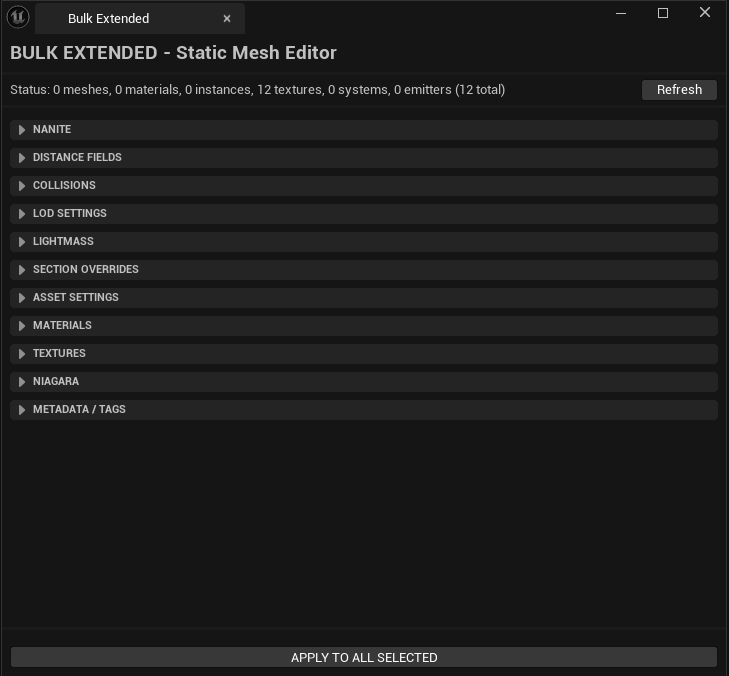
2. Installation
- Open the project.
- Go to Edit > Plugins.
- Confirm that Bulk Extended is enabled.
- Restart the editor if it was just enabled.
C++ projects may rebuild project modules the first time the editor loads the plugin.
3. Opening the Tool
Bulk Extended adds a dockable editor tab.
- Main access path: Window > Bulk Extended.
- A toolbar button may also be available depending on the current editor layout.
- Window title: BULK EXTENDED - Static Mesh Editor.
The current window title references Static Mesh editing, but the tool also supports Materials, Material Instances, Textures, Niagara Systems, and Niagara Emitters.
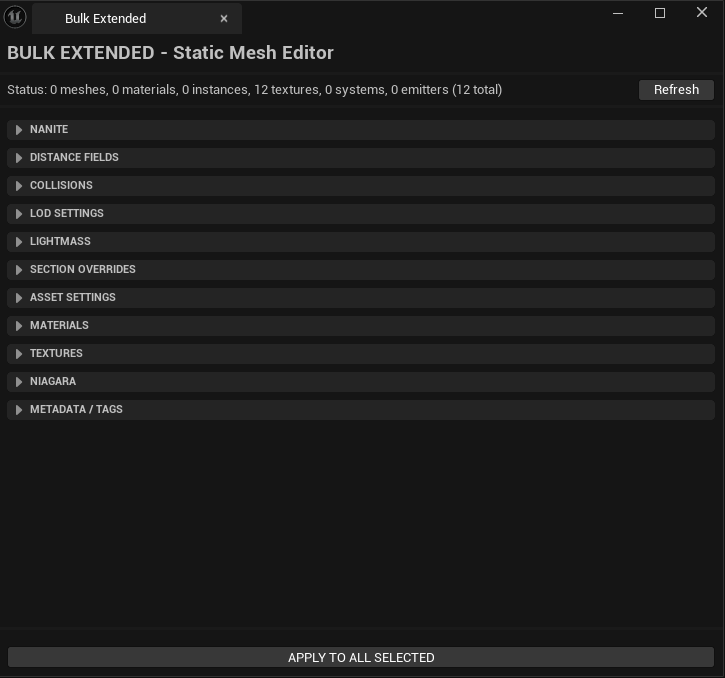
5. Basic Workflow
- Select one or more supported assets in the Content Browser.
- Open the Bulk Extended window.
- Click Refresh.
- Check the status bar and confirm the selected asset count.
- Expand the section you want to use.
- Enable that section's main Apply checkbox.
- Configure the values to apply.
- Click APPLY TO ALL SELECTED.
- Wait until the progress section reports completion.
- Review the result in a small sample of affected assets.
Important Workflow Rules
- Click Refresh again after changing the Content Browser selection.
- The Apply button is enabled only when at least one supported asset is selected.
- For batches of 30 assets or fewer, changed packages are marked dirty and can be saved normally by the user.
- For batches larger than 30 assets, Auto Safe Batch Save turns on automatically and saves dirty packages by chunks.
- Test risky settings on one or two assets before applying them to an entire folder.
6. Window Layout
The interface is organized into expandable sections. The Nanite section is expanded by default; the other sections start collapsed.
- NANITE
- DISTANCE FIELDS
- COLLISIONS
- LOD SETTINGS
- LIGHTMASS
- SECTION OVERRIDES
- ASSET SETTINGS
- MATERIALS
- TEXTURES
- NIAGARA
- METADATA / TAGS
At the bottom of the window, the plugin shows:
- Progress bar.
- Processing status text.
- Safe Save messages when applicable.
- Expandable Safe Save failure list when failures occur.
- APPLY TO ALL SELECTED button.7. Feature Guide
7.1 Nanite
The Nanite section applies Nanite configuration to selected Static Mesh assets.
Available Controls
- Apply Nanite Settings.
- Enable Nanite.
- Position Precision.
- Keep % Triangles.
- Trim Relative Error.
- Fallback Generation: Platform Default or Enabled.
- Fallback Target: Auto, Percent Triangles, or Relative Error.
- Fallback % Triangles.
- Fallback Relative Error.
Typical Use Cases
- Enable Nanite across imported mesh libraries.
- Standardize Nanite settings across repeated asset packs.
- Apply lighter fallback settings to background assets and stricter settings to hero assets.
7.2 Distance Fields
The Distance Fields section edits Static Mesh distance-field options, including per-LOD build settings.
Available Controls
- Apply Distance Field Settings.
- Apply to All LODs.
- LOD Index.
- Generate Mesh Distance Fields.
- Resolution Scale.
- Two-Sided.
Typical Use Cases
- Increase distance-field quality for meshes used by lighting, shadows, or effects.
- Reduce distance-field cost on background assets.
- Enable two-sided generation for thin geometry such as planes, leaves, cards, or shell-like meshes.
Distance Field generation is expensive. A Resolution Scale above 1.0 can increase build time and memory sharply, and Two-Sided generation adds more cost. This is expected Unreal behavior, not just plugin overhead.
7.3 Collisions
The Collisions section creates or replaces simple collision primitives on selected Static Meshes.
Available Controls
- Apply Collision Settings.
- Type: Box, Sphere, or Capsule.
- Remove Existing Collision First.
- Apply Collision Complexity.
- Collision Complexity: Use Default, Simple And Complex, Simple As Complex, or Complex As Simple.
Typical Use Cases
- Create simple collision for imported meshes that have no collision.
- Replace incorrect collision in batch.
- Standardize collision complexity across prop libraries.
7.4 LOD Settings
The LOD Settings section applies basic LOD behavior to selected Static Meshes.
Available Controls
- Apply LOD Settings.
- LOD0 Screen Size.
- Min LOD.
Typical Use Cases
- Standardize LOD 0 transition thresholds.
- Force selected meshes to start from a lower minimum LOD.
7.5 Lightmass
The Lightmass section manages lightmap resolution, lightmap UVs, and related build settings for selected Static Meshes.
Available Controls
- Apply Lightmass Settings.
- Apply Build Settings to All LODs.
- Build Settings LOD.
- Resolution.
- UV Index.
- Source UV Index.
- Generate Lightmap UVs.
- Auto-Fix Lightmap UVs.
Typical Use Cases
- Fix imported meshes with incorrect lightmap UV setup.
- Prepare meshes for baked-lighting workflows.
- Standardize lightmap resolution across a set of props.
When Auto-Fix Lightmap UVs is enabled, that automatic correction takes priority over the manual lightmap build settings in this section.
7.6 Section Overrides
Section Overrides changes per-section properties on Static Mesh LODs.
Available Controls
- Apply Section Overrides.
- Apply to All LODs or a specific LOD Index.
- Apply to All Sections or a specific Section Index.
- Override Cast Shadow.
- Override Material Slot.
- Override Visible in Ray Tracing.
- Override Affect Distance Field Lighting.
- Override Force Opaque in Ray Tracing.
Typical Use Cases
- Disable shadows on selected mesh sections.
- Reassign sections to a specific material slot.
- Adjust ray tracing and distance-field flags across multiple meshes.
If a specific LOD or section index is outside the valid range for a mesh, that mesh is skipped for that specific targeted operation instead of crashing.
7.7 Asset Settings
Asset Settings groups general Static Mesh options that do not fit into the rendering, collision, or Lightmass sections.
Available Controls
- Apply Uniform Sampling Settings.
- Support Uniform Sampling (CPU).
- Support Uniform Sampling (GPU).
- Apply Import Uniform Scale (Metadata).
- Uniform Scale.
Import Uniform Scale updates import metadata. It does not reimport or visibly scale existing mesh geometry by itself. It only applies when the mesh has compatible import data.
7.8 Materials
The Materials section works with selected base Materials and Material Instances. The parameter dropdowns are populated from the current selection after Refresh.
Available Controls
- Apply Material Settings.
- Scalar Parameter: name and value.
- Vector Parameter: name and RGBA value.
- Texture Parameter: name and texture asset reference.
- Static Switch: Material Instance parameter name and enabled state.
- Static Component Mask: name and R/G/B/A channels.
- Copy Uniform Parameters From Parent (Material Instance).
- Include Static Parameters.
- Clear Material Instance Overrides.
Typical Use Cases
- Set a common scalar, vector, or texture parameter across many Material Instances.
- Update base Material parameter defaults in batch.
- Clear overrides on Material Instances before applying a new library standard.
Static Switch and Static Component Mask changes can trigger shader recompilation. The UI warns when a selected parameter is missing in some selected assets.
7.9 Textures
The Textures section edits common UTexture settings in batch.
Available Controls
- LOD Bias.
- Max Size.
- Texture Group.
- Compression.
- Lossy Compression.
- Mip Gen.
- Power Of Two.
- sRGB.
- Flip Green Channel.
- Normalize Normals After Mips.
- Compress Without Alpha.
- Force Alpha Channel.
- Virtual Texture Streaming.
- VT Priority.
- VT Prefetch Mips.
- Oodle SDK Version.
- Oodle Preserve Extremes.
Typical Use Cases
- Normalize texture compression settings for a target platform.
- Correct normal map import settings in bulk.
- Apply virtual texture settings across large texture sets.
Texture compression and mip changes can trigger asset processing after the settings are applied.
7.10 Niagara
The Niagara section works with both Niagara Systems and Niagara Emitters. Some options apply only to one of those asset types.
Available Controls
- Apply Niagara Settings.
- Fixed Bounds: use fixed bounds plus Min and Max vectors.
- Warmup Time (systems).
- Warmup Tick Count (systems).
- Determinism.
- Effect Type (systems).
- Sim Target (emitters).
- Enable Renderers (emitters).
Typical Use Cases
- Standardize fixed bounds for multiple effects.
- Apply deterministic behavior across selected systems or emitters.
- Switch emitters between CPU and GPU simulation targets.
GPU simulations can increase runtime cost and memory use. Use the Sim Target setting deliberately.
8. Progress and Auto Safe Batch Save
When APPLY TO ALL SELECTED is pressed, Bulk Extended processes assets with time-slicing so the editor can update the UI while the batch runs. The progress bar shows overall completion.
Normal Batch Mode
For 30 assets or fewer, the plugin keeps the existing workflow: it applies changes, marks affected packages dirty, and the user saves the results normally.
Auto Safe Batch Save
For batches larger than 30 selected supported assets, Auto Safe Batch Save turns on automatically. This is designed to reduce memory spikes during large batches that rebuild Static Meshes, Distance Fields, Nanite data, texture derived data, material permutations, or Niagara assets.
- Activation threshold: more than 30 processing assets.
- Chunk size: 15 assets per chunk.
- Applies to all supported asset types, not only Static Meshes.
- Static Mesh compilation is drained per chunk only for meshes that need it.
- Dirty packages from the chunk are saved silently.
- Garbage collection and editor cleanup run between chunks.
What the UI Shows
- Safe Save: ON while the mode is active.
- Processing chunk X/Y (A/B) during processing.
- Compiling... while pending Static Mesh compiles are drained.
- Saving chunk... while the current chunk packages are saved.
- Cleaning memory... while the editor cleanup runs.
- Completed: N assets processed, M packages saved across C chunks when no failures occurred.
- Completed with failures: M packages saved, F failed when any failure was recorded.
Failure Reporting
Failures do not abort the whole batch. They are classified and shown in the expandable Safe Save failures list in the progress panel.
- preflight invalid: the asset or package was invalid before processing.
- read-only: the package file was not writable, so Auto Safe Batch Save skipped it.
- save failed: Unreal attempted to save the package, but it remained unsaved.
- remained dirty: the package was still dirty after the save pass.
There is no rollback. If a failure occurs in a later chunk, packages saved by earlier chunks remain saved. The final summary is the source of truth for what completed and what still needs attention.
9. Saving and Source Control
Small Batches
For batches of 30 assets or fewer, save modified assets using the normal Unreal workflow after reviewing the result.
Large Batches
For batches larger than 30 assets, Auto Safe Batch Save attempts to save dirty packages by chunk. The plugin does not attempt automatic Source Control checkout; packages must already be writable locally.
If Source Control Blocks a Save
- Check the Safe Save failures list for read-only, save failed, or remained dirty entries.
- Resolve locks or permissions in Perforce, Git LFS, or the team's Source Control provider.
- Re-run the batch only on the assets that failed or remained dirty.
Silent saving avoids modal Source Control dialogs during automated chunk processing. Source Control checkout should be handled before running the batch if your project requires it.
10. Performance Notes
Large batch operations can be slow when selected settings trigger Unreal to rebuild asset data. This is normal for expensive editor operations and does not automatically mean the plugin is stuck.
Operations That Can Take a Long Time
- Distance Fields: enabling Generate Mesh Distance Fields, increasing Resolution Scale, or enabling Two-Sided generation.
- Nanite: enabling/disabling Nanite or changing precision and fallback settings.
- Materials: Static Switch and Static Component Mask changes that compile new shader permutations.
- Textures: compression, mip generation, virtual texture, and Oodle setting changes.
- Lightmass build settings: UV generation and lightmap-related build changes.
Distance Field Practical Guidance
- Resolution Scale 1.4 is not just 40 percent more expensive in practice. Distance Field data is volumetric in nature, so cost can grow much faster depending on mesh size and complexity.
- Two-Sided generation should be reserved for thin or open geometry that needs it.
- Test one to five representative meshes before running the same settings on dozens or hundreds of assets.
Recommended Batch Strategy
- Run one small test batch first.
- Avoid changing settings that are already correct; unnecessary rebuilds cost time.
- Prefer smaller themed batches when testing new settings.
- Let the editor finish compiling and saving before closing it.
11. Best Practices
- Save the project before any risky batch operation.
- Refresh after every Content Browser selection change.
- Test a representative sample before processing an entire folder.
- Use Auto Safe Batch Save summaries to identify partial results in large batches.
- Confirm Source Control checkout or writable-file state before editing large libraries.
- Batch by asset type when validating a new workflow; mixed batches are supported, but single-type batches are easier to verify.
- Keep screenshots of final settings for team documentation or preset handoff.
12. Troubleshooting
The Apply Button Is Disabled
Likely cause: no supported assets are selected, or Refresh has not been clicked after changing the selection.
Fix: select supported assets in the Content Browser and click Refresh.
The Asset Count Does Not Update
Likely cause: the plugin window has not refreshed the current Content Browser selection.
Fix: click Refresh.
Material Parameters Are Missing
Likely cause: the selected parameter does not exist on every selected Material or Material Instance.
Fix: verify the parameter name, watch the missing-parameter warning, and test with a small sample.
Static Switch Changes Take a Long Time
Likely cause: Unreal is compiling shader permutations after the static parameter change.
Fix: wait for compilation to finish. Use smaller test batches when validating new material settings.
Distance Field Batches Are Slow
Likely cause: Distance Field generation is rebuilding mesh data, especially with high Resolution Scale or Two-Sided enabled.
Fix: test lower Resolution Scale values, disable Two-Sided where it is not needed, and let Safe Save process chunks to completion.
Large Batch Completed with Failures
Likely cause: invalid assets, read-only files, Source Control locks, save failures, or packages that remained dirty.
Fix: expand Safe Save failures, identify the failure type, resolve the package or Source Control state, and re-run only the affected assets.
Import Uniform Scale Does Not Visibly Change the Mesh
Likely cause: the setting updates import metadata and does not reimport or scale existing geometry.
Fix: treat it as import-pipeline metadata, then reimport through the appropriate Unreal workflow if geometry needs to change.